Plan Route on the Website
Overview
The OsmAnd Web Route Planner allows you to create navigation routes, plan tracks, and manage local files directly from your browser. This web tool is useful for creating detailed travel routes that you can sync to your app or share with others.
Create New Route
There are two ways to start a new route in Plan route. The first option is directly from the map: right-click anywhere on the map and select Create new route. The second option is from the left panel: click the Create track button.
Once the route is created, add points directly on the map. Each click places the next point, and the planner builds the route between points.

Import Track
If you already have a track file, you can import it into Plan route and continue working with it in the Web Planner. Click the Import track button and select a GPX file from your computer. After the upload, the track appears in your local list and opens in the planner, so you can review it on the map and proceed with editing and management in the track panels.
Local Files
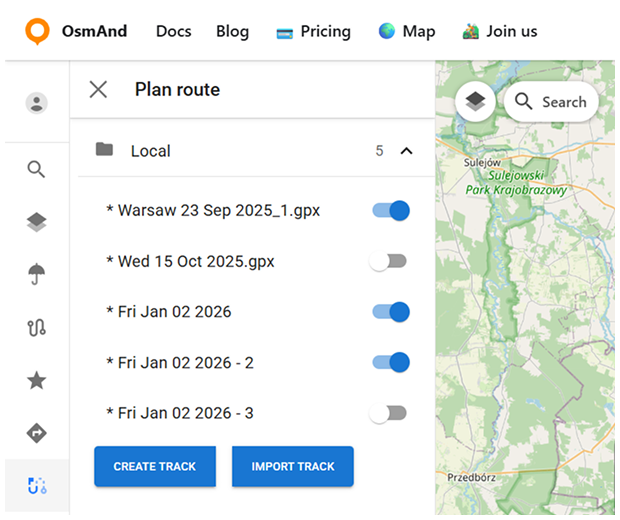
All routes and tracks you create or import in Plan route are added to the Local list in the left panel. This makes it easier to keep multiple GPX files in one place and switch between them while planning.
Each item in the list has a toggle that lets you quickly show or hide the track on the map. Select a track from the list to open it in the planner and continue working with it.
Manage Track
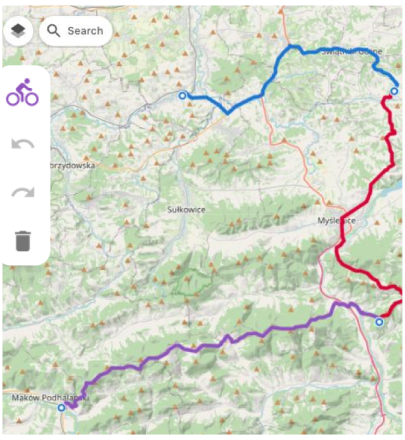
When you create or import a route in Plan route, a vertical track panel opens. This panel allows you to change the routing profile and manage the route.
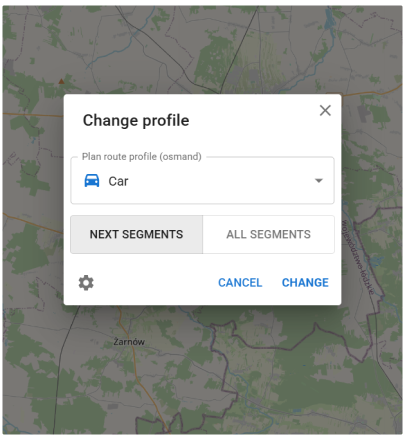
Click the profile control to open the Change profile dialog. Select the required profile (for example, Car, Bicycle, or Pedestrian), then choose how to apply it: Next segments applies the profile only to new parts added from this point forward, while All segments recalculates the entire route using the selected profile.
From the track panel, you can also Delete the track from your local list.
In the Overview panel, you can Save to Cloud to keep the route for later use and Download it as a GPX file.
Track Details Panels
The local track menu includes three panels: Overview, Track, and Points. Use them to view track information and manage route points and waypoints.
Overview Panel
The Overview panel summarizes the selected track and shows key route and elevation data. It includes a quick overview of the route statistics, plus charts and additional track analysis based on available map data.
The summary section shows:
- Points — the number of route points used to build the route.
- Distance — the total route length.
- Uphill / downhill — total ascent and total descent along the route.
- Elevation (min/avg/max) — elevation statistics for the route.
- If elevation data is missing or needs to be updated, use Elevation (Satellite) → recalculate to rebuild elevation using satellite data (when available).
Below the summary, the panel provides charts:
- Elevation — an elevation profile of the route.
- Slope — a slope graph showing gradient changes along the track.
- Speed — a speed graph along the track.
You can enable or disable the following options:
- Show track points — displays track points on the map.
- Show waypoints — displays waypoints on the map.
For additional track details, open the analysis sections:
- Road type — breaks the track into segments by road classification.
- Surface — shows surface types along the route based on OSM data.
- Smoothness — shows segment smoothness based on OSM tags.

Track Panel
The Track panel shows the list of route points used to build the track. Use it to review and edit the route structure: drag points to reorder them, remove points using the delete icon, or use Clear points to remove all points and start over.

Points Panel
The Points panel is used to view and manage waypoints for the selected track. Waypoints can be added from the map context menu — right-click on the map and choose the option to Add awaypoint, then fill in the waypoint details (such as name, icon, and color) and save it.
Waypoint editing uses the same interface as Favorites editing. You can modify waypoint properties such as name, address, description, icon, color, and shape using the unified Edit panel. The selected appearance is previewed both in the editing panel and directly on the map.
In the Waypoints list, you can control whether waypoints are shown on the map and remove individual waypoints when needed. To remove all waypoints from the track at once, use Clear all waypoints.
